
To create a new Price Plan:
1. Click Store Control on the main menu bar.
2. Select Pricing Options and click Price Plans. The Price Plan Scan window displays:
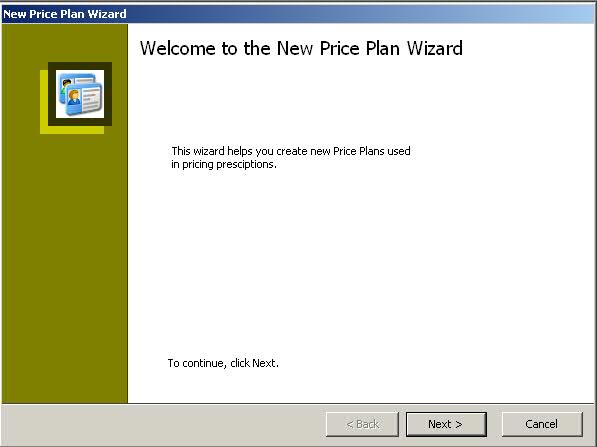
3. Click  on the main
menu bar or press CTRL+N. The
New Price Plan Wizard displays:
on the main
menu bar or press CTRL+N. The
New Price Plan Wizard displays:
4. Click  . The Price Plan Model
window displays:
. The Price Plan Model
window displays:
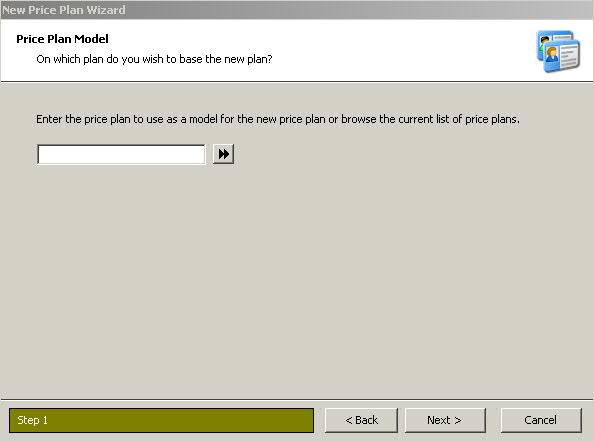
5. Type the name of an existing plan to copy or click the arrows to display the Price Plan Scan. Select a plan to copy. In our example, AWP + $ 2.50 was selected from the scan.
 Remember to choose a plan to copy that
is the same 'Type' of plan you want to create. For example, select a third
party price plan to copy when creating a new third party plan.
Remember to choose a plan to copy that
is the same 'Type' of plan you want to create. For example, select a third
party price plan to copy when creating a new third party plan.
6. Click
.
The Price Plan Description window displays.
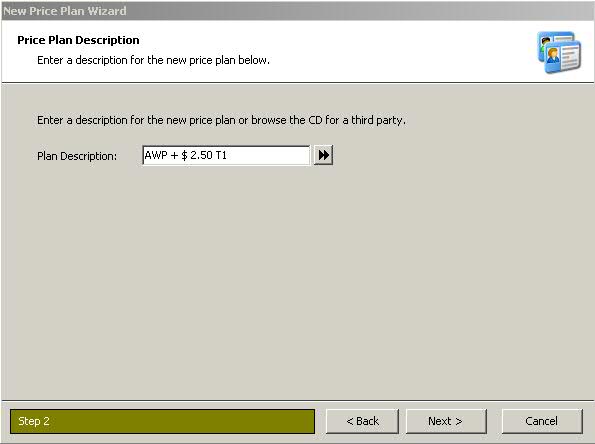
7. Type a description for the new plan
and click .
The Plan-Specific Information window displays:
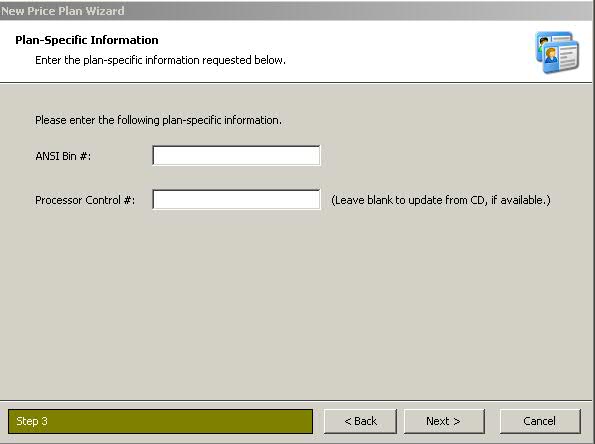
8. Type information in the ANSI Bin # and
Processor Control # fields. Click .
9. The New Price Plan Summary window displays:
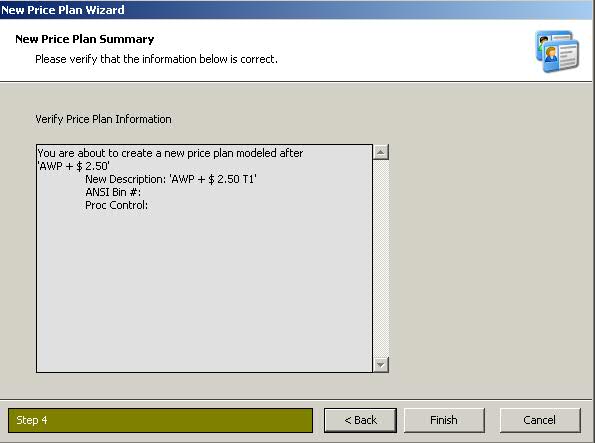
10. Verify that all the information is
correct and click  . The New
Price Plan Saved! window displays:
. The New
Price Plan Saved! window displays:

11. You have the option to review the plan
you created. Click  to exit the
wizard.
to exit the
wizard.