Daily Audit Log

The Daily Audit Report prints a list of transactions completed for the
day, or days, selected. It provides a total of all prescriptions filled
by each pharmacist. This report may be printed from Prescription Reports
or Management Reports. However, when printed from Prescription Reports,
only transactions are listed. When printed from Management Reports, the
report shows transactions in dollar figures and the Transaction Signature
Log prints after the report if the Print Option Print Totals Only = NO.
Sample Report
________________________________________________________________________________
Click here to review a comparison of the Daily Audit (or Monthly) Audit Report and the Revenue Report.
The process of generating a report in PrimeCare involves a set of steps referred to as Report Logic. These steps include selecting data, sorting the selected data in a certain order and then printing the report. Review Reports Overview for details on these steps.
To run the Daily Audit Report:
1. Access PrimeCare.
2. Click Reports. Select Management and click Daily Audit. Select Options display:
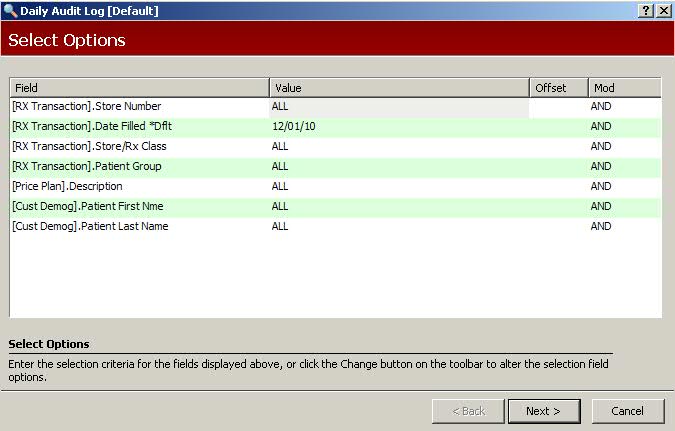
2. Complete the Select Options and click  . Sort Options
display:
. Sort Options
display:
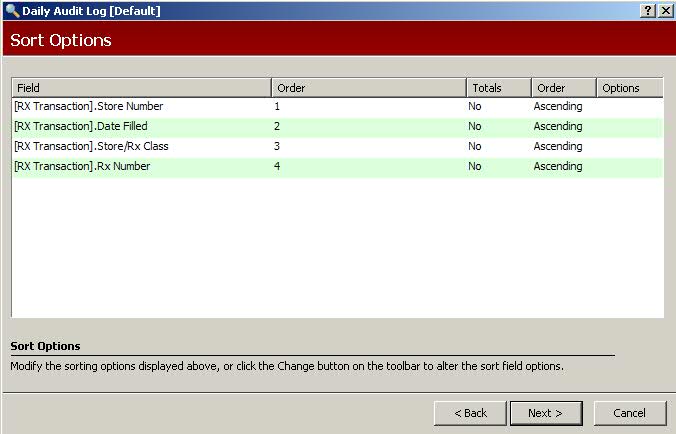
3. Complete the Sort Options and click . Print Options
display:
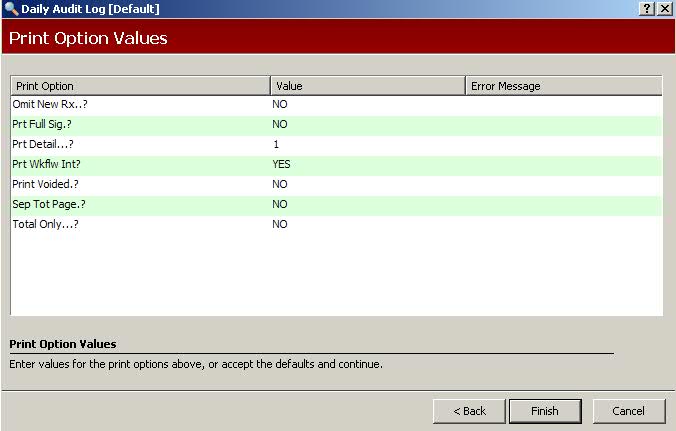
4. Use the following definitions to complete the Print Options:
Omit New Rx..?: Type YES to omit new prescriptions from the report. Type NO to include new prescriptions in the report.
Prt Full Sig.?: Type YES to print the full SIG for each prescription. Type NO to omit the SIG.
Prt Detail...?: Valid options are
1. Print one line of basic prescription information. The NP/PA name prints if applicable.
2. Prints a second line of information that contains Patient Group Code, Full Patient Address, Doctor DEA Number, Doctor Degree and Original Refills Authorized. The NP/PA name prints if applicable.
3. Prints a third line containing Full Doctor Address, Manufacturer, Date Rx Written, the primary drug proceeded by the phrase Dispensed for (if two drugs are on the Prescription Record), the total number of Refills Remaining and the Drug NDC Number. The NP/PA name prints if applicable.
Prt WkFlw Int: Type YES to print the initials of the person who performed particular steps in the Workflow process (Entry by, Verified by, Labeled by, QA, Delivery, Err Res.). Type NO to omit this information.
Print Voided.?: Type YES to print voided transactions. Type NO to exclude voided transactions on the report.
Sep Tot Page.?: Type YES to print the totals on a separate page of the report. The sales analysis totals include new prescriptions even if they are excluded from the printed report. Type NO to exclude a separate totals page.
Total Only...?: Type YES to print totals only. Type NO to print details of each transaction.
5. Verify entries are correct and click  to print
the report.
to print
the report.
 The IFCO column displays in the Daily and Monthly Audit Reports. The following
codes appear in the column:
The IFCO column displays in the Daily and Monthly Audit Reports. The following
codes appear in the column: