1. Access PrimeCare.
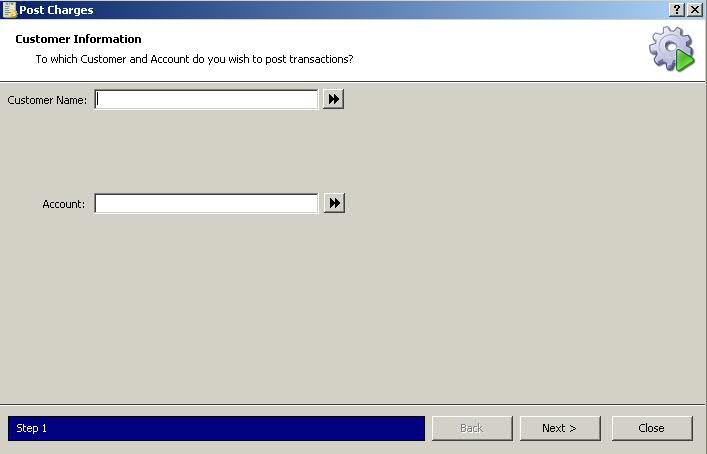
2. Click A/R. Select Posting and click Post Charges. Post Charges displays:
3. Type the last name, first name in the Customer Name field, click
the double arrows and then click  .
.
4. The Patient Scan displays. Double-click the name or press the corresponding function key for the patient who has charges to post to their account. Post Charges displays with customer and account details:
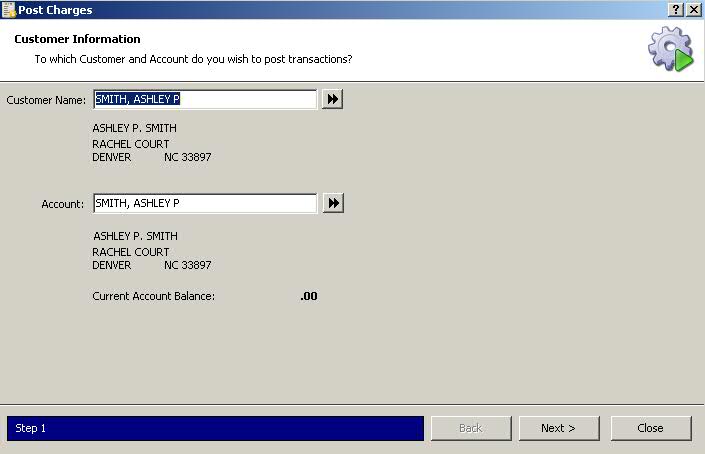
5. Verify the information is correct and click .
Transaction Information displays:
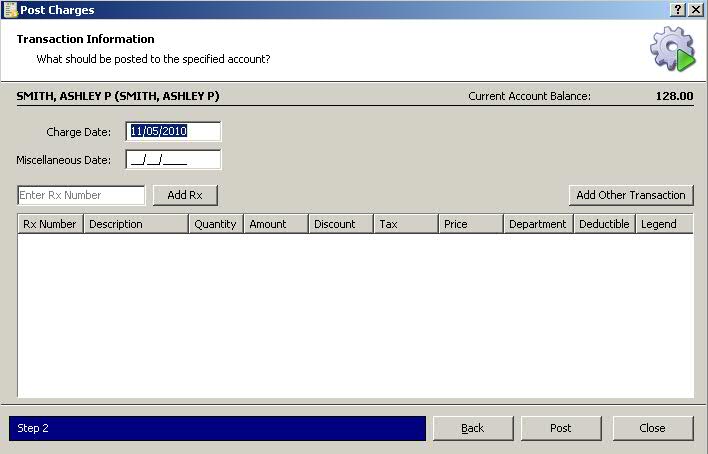
6. To manually post a prescription, type the prescription number in
the Enter Rx Number field. Click  . Prescription
information displays:
. Prescription
information displays:

7. When all transactions have been added, click  .
Verify the A/R Post amount displays:
.
Verify the A/R Post amount displays:
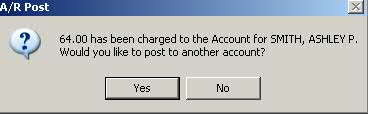
8. Click  to post to another
account. Click
to post to another
account. Click  to return to
Rx Processing tasks.
to return to
Rx Processing tasks.
9. To post non-prescription items, click  . Transaction
Information displays with the prompt, Click to Edit, in the Description
field. Add the item description and complete the remaining fields:
. Transaction
Information displays with the prompt, Click to Edit, in the Description
field. Add the item description and complete the remaining fields:
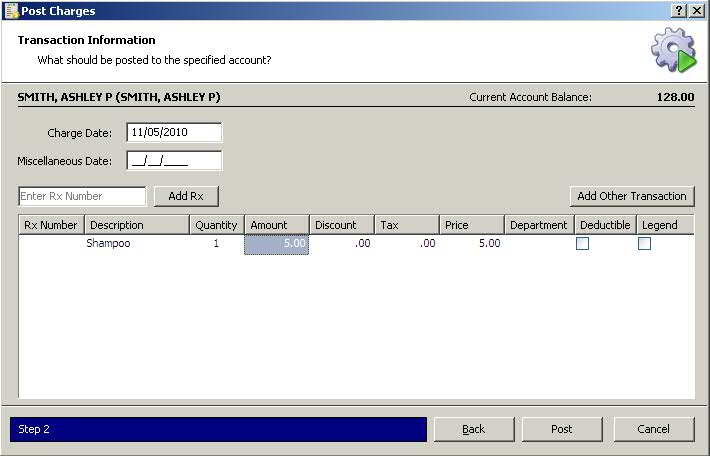
10. Click when complete.
Verify the A/R Post displays.
11. Click to post to another
account. Click to return to
Rx Processing tasks.