 on the main
menu bar. The Patient Profile displays the prescriptions for that patient:
on the main
menu bar. The Patient Profile displays the prescriptions for that patient:When a patient has a prescription that needs to be discontinued, the Discontinue function is available from the Rx Summary General Information screen.
To discontinue a prescription:
1. Access the Patient Record and click on the main
menu bar. The Patient Profile displays the prescriptions for that patient:

2. Double-click or press the corresponding function key of the prescription to discontinue. The Rx Summary General Information screen displays:
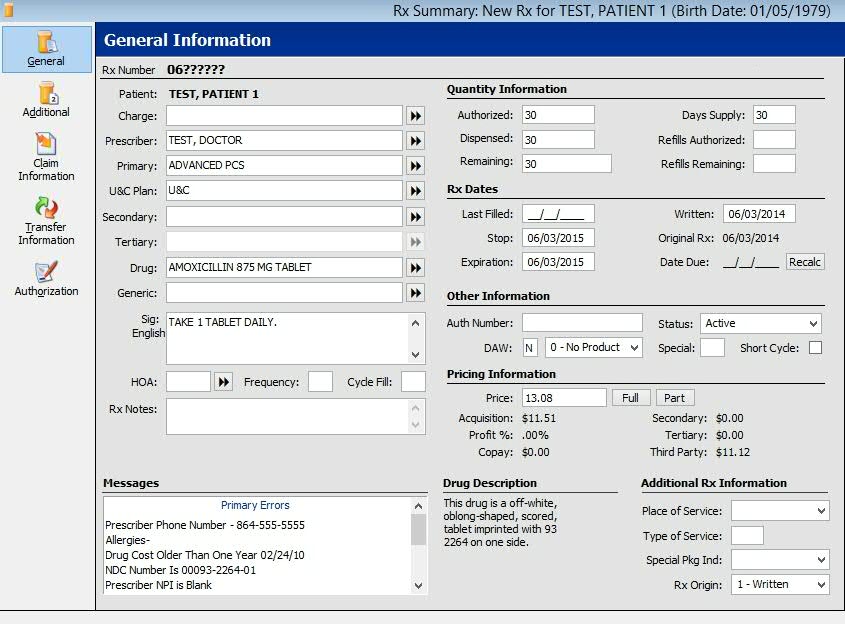
3. Click  on the main tool
bar or press CTRL+D.
on the main tool
bar or press CTRL+D.
4. The Primary Errors box displays the message Inactive Script.
5. When the prescription is discontinued, the Discontinue icon changes
to  .
.
6. Click Reassign and the prescription number changes to questions marks until the prescription is filled, profiled or saved.
Return to Common Prescription Processing Functions